Emoji Shortcuts Cheat Sheet: Fast Typing for Slack, Discord & GitHub
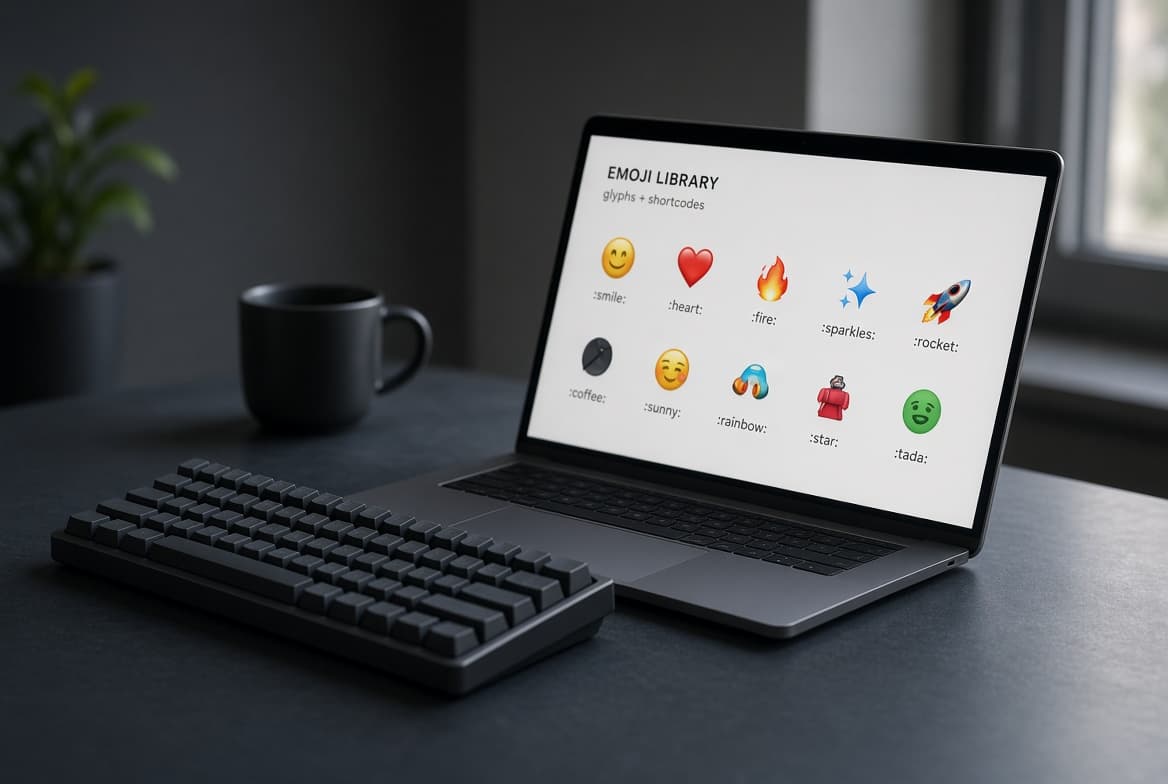
Reaching for your mouse just to click open an emoji picker slows down your workflow whether you are firing off a quick Slack reply, pushing a Git commit message, or organizing Notion docs. Learning universal markdown colon shortcodes lets you keep your hands on the home row and drop emojis in split seconds. In remote team communication, micro-delays add up fast. Searching through visual popups disrupts your typing flow, while memorizing a handful of core markdown shortcodes turns reaction typing into muscle memory. This comprehensive cheat sheet covers essential workplace shortcodes, system-wide OS keyboard shortcuts, developer workflow tricks, and practical tips for instant typing across modern apps.
Most Popular Slack & Discord Shortcodes
| Emoji | Shortcode | Category | Primary Work Use Case |
|---|---|---|---|
| 👍 | :thumbsup: | Reactions | Acknowledging tasks & approving requests instantly |
| 🚀 | :rocket: | Status & Launch | Deploying features, shipping releases & sharing wins |
| 🎉 | :tada: | Celebration | Welcoming team members & celebrating major milestones |
| 👀 | :eyes: | Attention | Signaling active review on a ticket or pull request |
| 🔥 | :fire: | Trending | Highlighting urgent updates or hot bug fixes |
| ✅ | :white_check_mark: | Task Done | Marking completed checklist items in chat threads |
| 🙏 | :pray: | Gratitude | Thanking teammates for quick code reviews or help |
| 💡 | :bulb: | Idea / Tip | Tagging creative proposals and process improvements |
| 🐛 | :bug: | Engineering | Flagging code bugs, glitches, or QA regression issues |
| ✨ | :sparkles: | Feature | Highlighting polished UI updates and new product features |
System-Level OS Keyboard Shortcuts
| Operating System | Keyboard Shortcut | Functionality | Scope |
|---|---|---|---|
| macOS | Cmd + Ctrl + Space | Opens native Character Viewer overlay | System-wide across all Mac applications |
| Windows 10 / 11 | Win + . (Period) or Win + ; | Opens native Windows Emoji Panel | System-wide across all PC applications |
| Slack / Discord | Type : directly into chat | Triggers inline shortcode autocomplete picker | App-specific chat input fields |
| GitHub / Markdown | Type : followed by emoji name | Renders inline emoji icon upon commit/save | Pull requests, issues, & repository READMEs |
| Linux (Ubuntu/GNOME) | Ctrl + . or Ctrl + Shift + E | Triggers native Unicode emoji insertion | Supported GTK text entry fields |
Pro Tip: Start your Git commit messages with standardized shortcodes like :sparkles: for new features or :bug: for bug fixes. Adoption of standardized emoji prefixes—often referred to as Gitmoji—makes your repository commit history clean, visually scannable, and instantly understandable for engineering team members reviewing recent changes.
Fun fact: Over 90% of modern communication platforms support markdown shortcodes wrapped in colons (:emoji_name:), making colon notation a universal shorthand for daily remote work and asynchronous team updates.
Developer & Markdown Workflow Hacks
Integrating emoji shortcodes directly into your documentation strategy creates visual anchors that improve reader retention. Technical documentation can quickly become overwhelming when formatted as dense walls of plain text. Strategic usage of status emojis inside markdown tables, alert callouts, and project roadmaps gives readers immediate context before they read a single sentence.
For instance, adding shortcodes inside GitHub issue templates allows team members to quickly label bug reports versus feature enhancements without manually selecting dropdown menus. Similarly, setting up snippet expanders on your operating system lets you type custom abbreviations like ';agree' and automatically expand them into ':thumbsup: Approved!'. Combining custom auto-complete shortcuts with standard markdown colon syntax maximizes daily productivity.
How to Search & Copy Shortcuts Instantly
- 1Type any keyword, emotion, or action (such as "fire", "rocket", "check", or "party") into our tool search bar.
- 2Click the displayed shortcode to copy the markdown text directly, or click the emoji icon to copy the raw Unicode glyph.
- 3Paste the copied content straight into your Slack message, Discord server, GitHub pull request, or Notion document editor.
- 4Bookmark the search page for quick access whenever you need to look up uncommon technical symbols or team status icons.
Frequently Asked Questions
Why do some emoji shortcodes render differently in Slack vs Discord?
While standard default emojis share universal markdown names like :smile: or :fire:, custom server emojis depend on individual workspace settings and custom uploads. Standardized Unicode shortcodes work reliably across all platforms, but custom workspace aliases stay restricted to their specific host app.
Do emoji shortcodes work in raw text emails?
Raw colon shortcodes like :rocket: will not automatically convert into images inside standard email clients like Gmail or Outlook unless pasted as actual Unicode symbols. Copy the raw emoji glyph directly instead of the text shortcode when drafting email subjects or body text.
Can I create custom shortcodes in Slack or Discord?
Yes! Admin permissions in Slack and Discord allow you to upload custom PNG or GIF assets and assign custom colon shortcodes to them. Once uploaded, typing your custom shortcode inside that workspace renders your personalized team image.
Are emoji shortcodes accessible for screen readers?
Yes, standard Unicode emojis include accessibility descriptions that screen readers announce to visually impaired users. However, using long strings of repetitive emojis can create an annoying audio experience, so stick to one or two relevant shortcodes per message.
Stop hunting through slow popups and cluttering your focus. Open our free Emoji Shortcuts tool now to search, copy markdown shortcodes, and boost your daily communication speed.
Ready to try it yourself?
Launch Emoji Shortcuts Finder →